Install Driver(Windows/macOS/Linux environment only)
The setting method varies depending on the environment the product is used in.
When using OPOS driver (Windows)
When using JavaPOS driver (Windows/macOS/Linux)
When using OPOS driver (Windows)
When connecting this product to an app such as POS using OPOS, configure OPOS driver settings in advance.
The OPOS driver is included in Star Windows Software. After installing Star Windows Software, use the Printer Utility to configure the OPOS settings.
1. Download Star Windows Software
- Download "Star Windows Software Full".
Use App-Windows
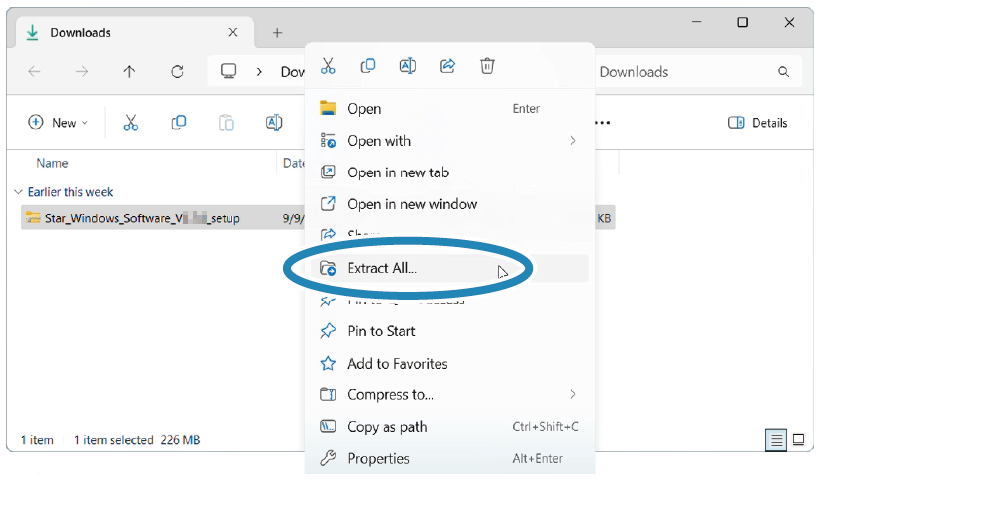
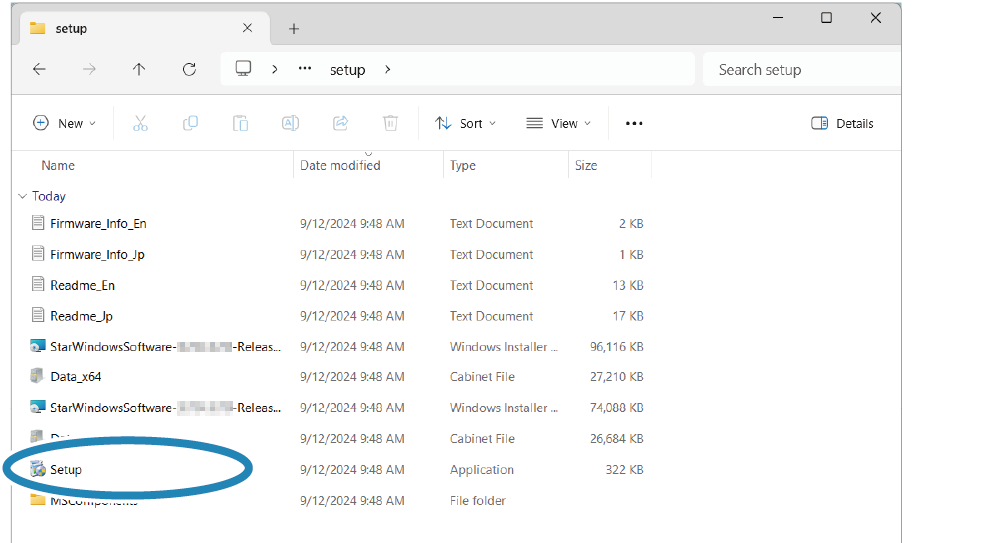
2. "Extract all" the downloaded software and run "Setup.exe"
- Right-click on the downloaded file and select "Extract All" from the menu and specify any place for destination.
- Open the extracted folder and run "Setup.exe" in the setup folder.
Memo
When using a Windows11 device equipped with "S mode", apps other than Microsoft Store apps cannot be installed (executed). If it is not possible to install Star Windows Software, check the Windows settings.
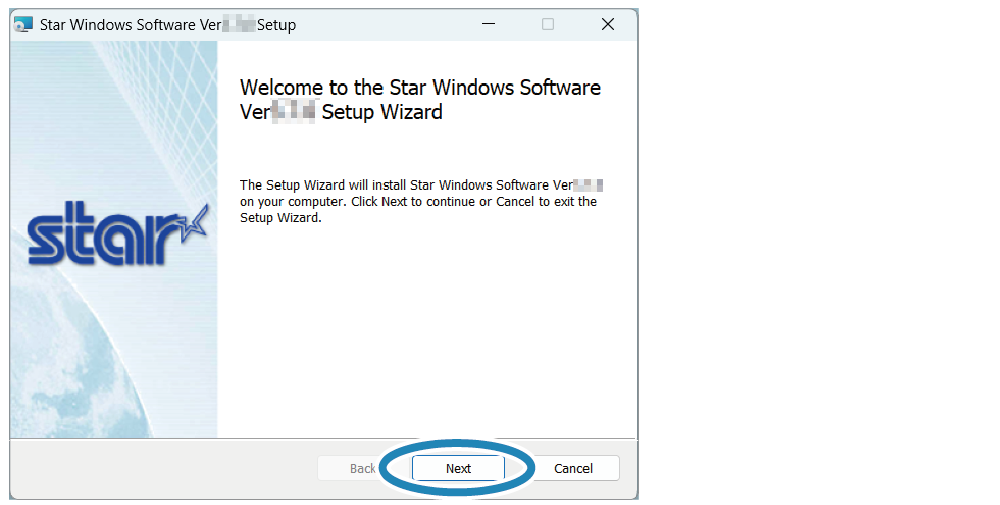
3. Follow the instructions of the wizard to execute installation.
Memo
For details on how to install Star Windows Driver, refer to the Star Windows Software Installation Manual.
Star Windows Software Installation ManualWhen using a JavaPOS driver (Windows/macOS/Linux)
When connecting this product to an application or system that uses JavaPOS, install the Star JavaPOS driver.
For details about how to install and use the Star JavaPOS driver, refer to the Star JavaPOS Driver Manual.