Connect with Bluetooth® LE
Pair the product with a PC, tablet or phone via Bluetooth LE.
Before Use: Check the Following
- Check the information of the product to be used when pairing it.
The information can be checked on the Product Information Label temporarily attached to the bottom of the product or on the ID label.
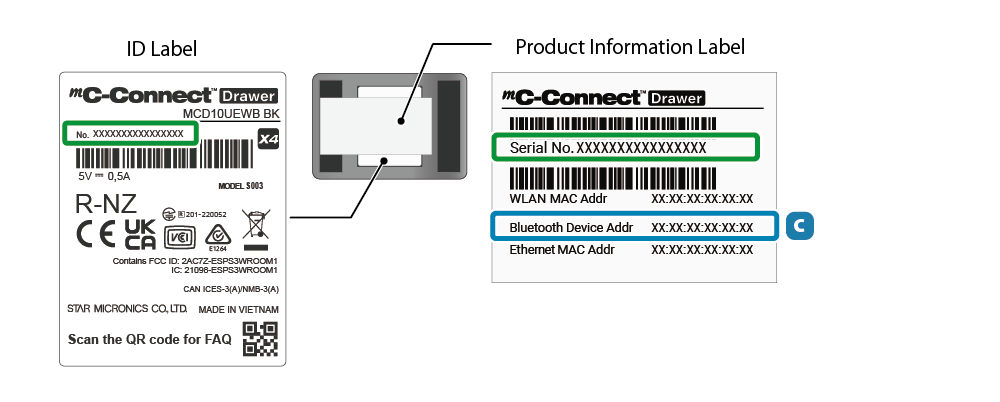
 Bluetooth device name:MCD10-XXXXX
The last characters of this name are the last four digits of the product serial number.
 Passkey:
The last six digits of the product serial number.
Passkey:
The last six digits of the product serial number.
Product serial number is the 16-digit number inside the green box.
Example:Product serial number:0229026189123456
Bluetooth device name:MCD10-X3456
Passkey:123456
 Bluetooth device address
- For iOS and Android, a dedicated app is required to set up the pairing.
Please install Star Quick Setup Utility. Refer to Use App. - For Windows, have the app you’ll be using ready.
The setting method varies depending on the OS of the device you are using.
Pairing from an iOS device
Pairing from an Android device
Pairing from a Windows device
Pairing from an iOS device
The following steps must be performed after this product is turned on.
Turn ON/Off Power
1. Turn on Bluetooth on your phone/tablet
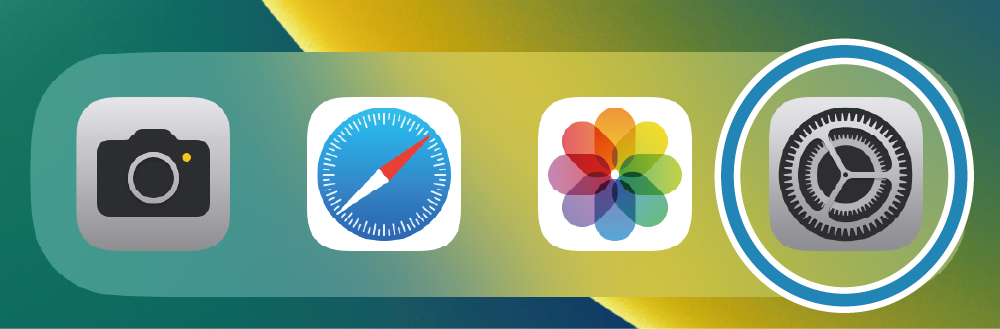
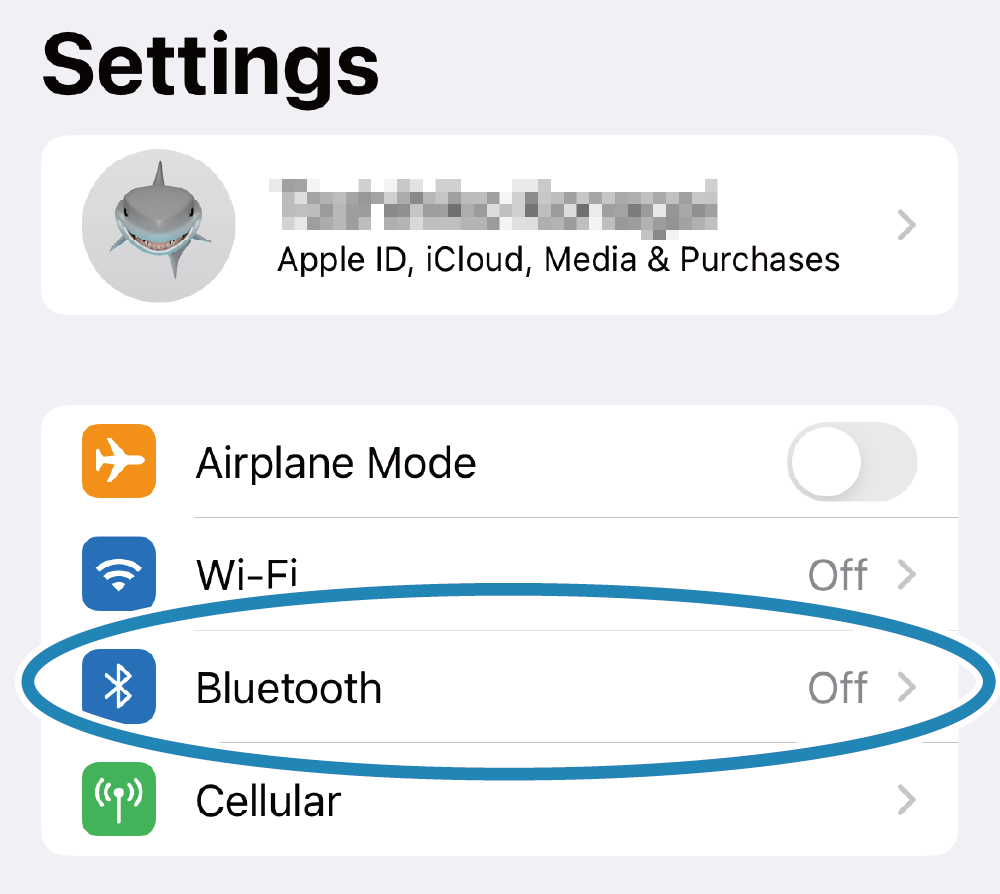
- Open the setting screen of the phone/tablet and select Bluetooth.
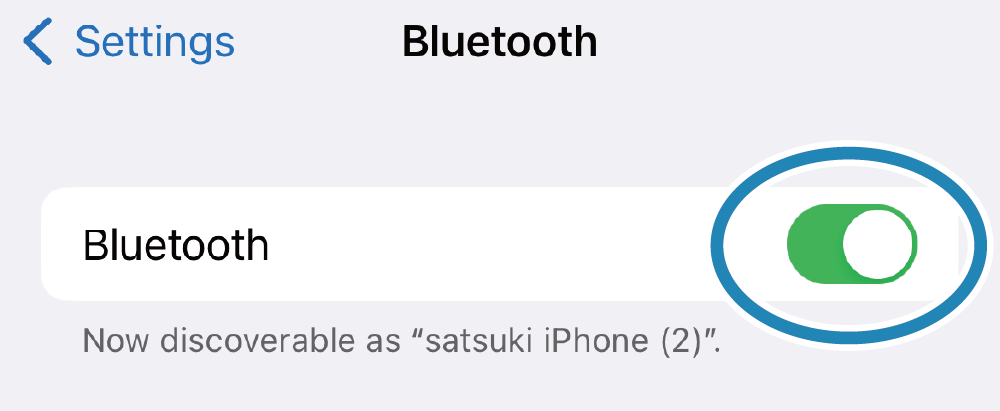
- Turn Bluetooth On.

2. Pairing using the dedicated app
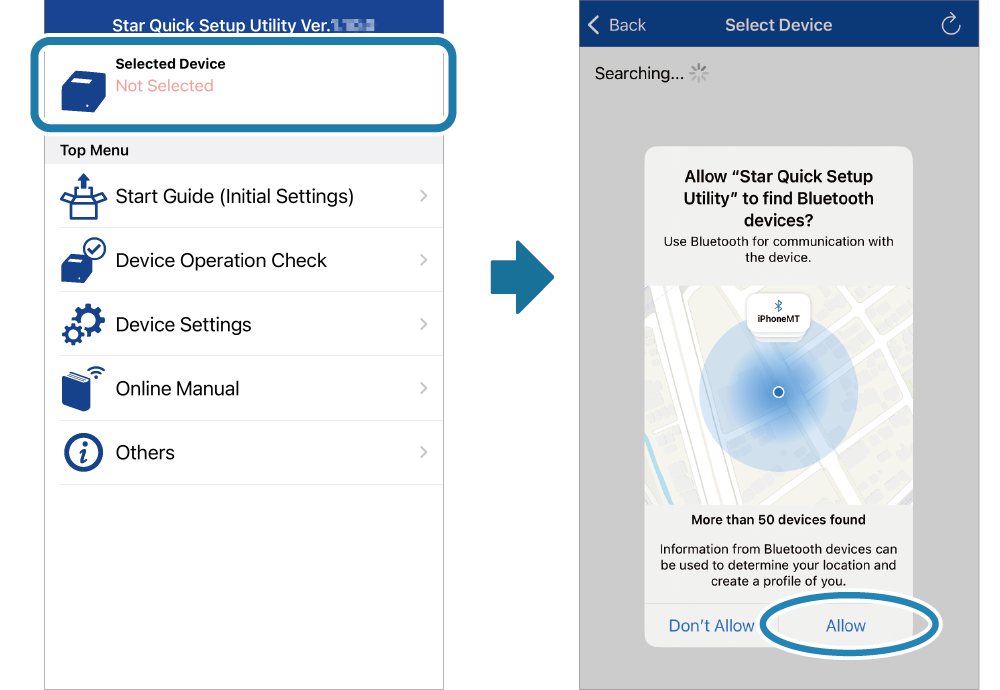
- Start Star Quick Setup Utility.
Tap [Selected Device].
If a screen appears asking for permission to detect devices, tap [Allow].
-
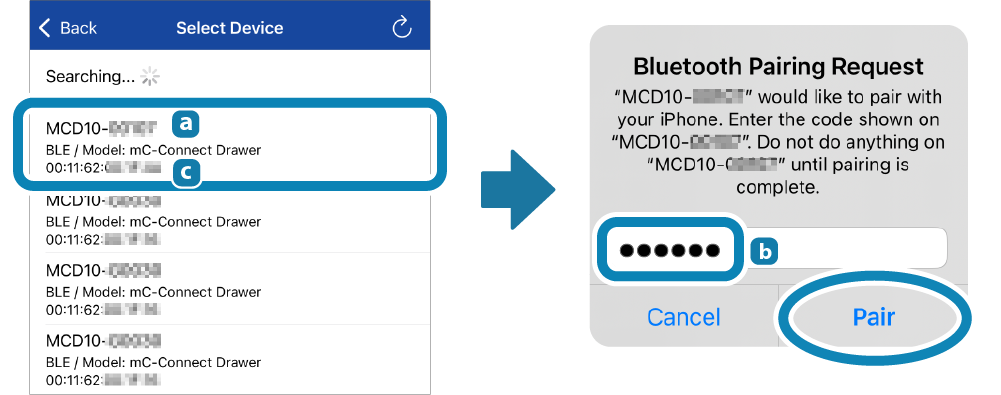
Check Bluetooth device name and Bluetooth device address, tap the corresponding device.
If a screen appears asking for permission to detect devices, tap [Allow].
At the initial communication, a Bluetooth pairing request screen is displayed.
Enter Passkey, and tap [Pair].
3. Confirm that pairing is complete
-
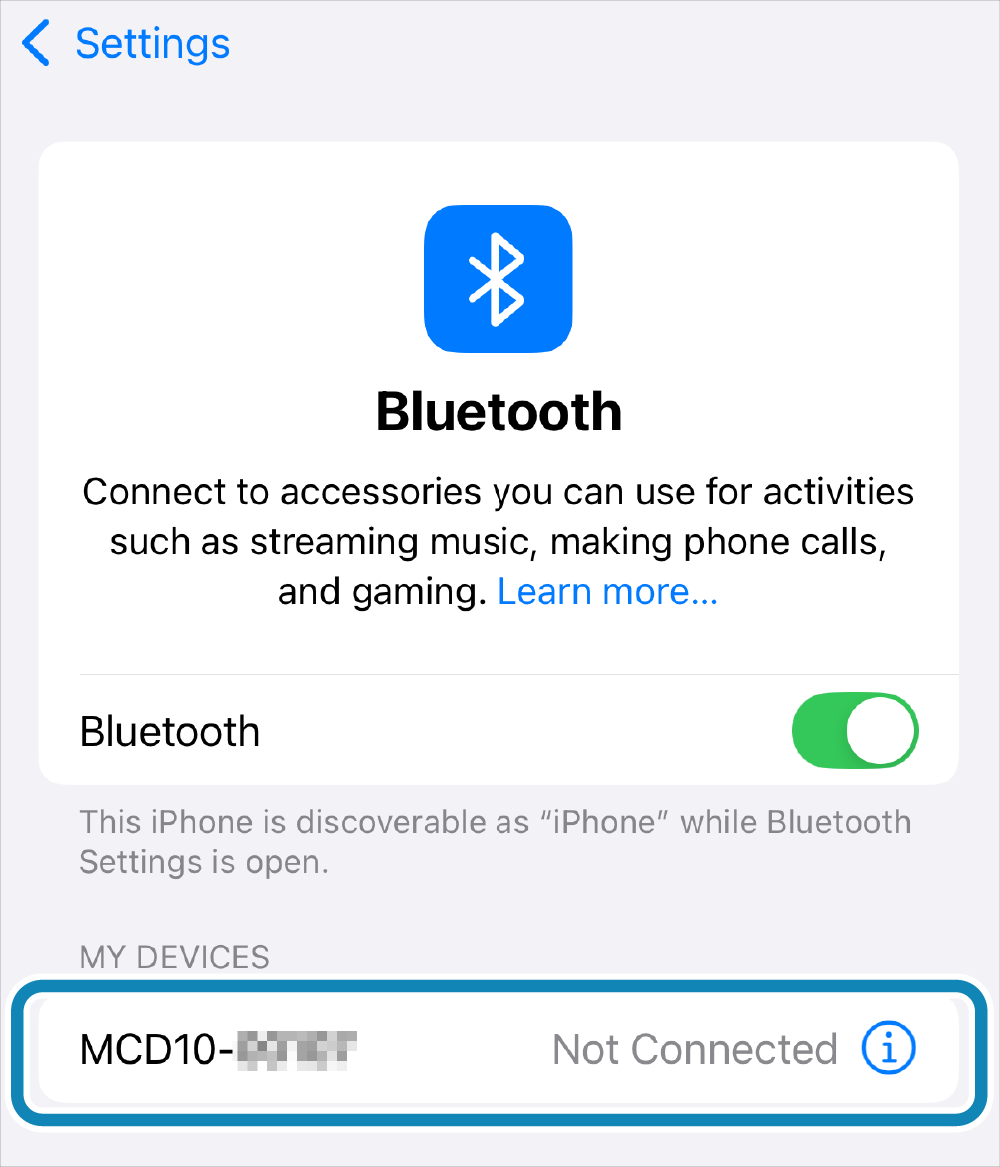
Once pairing is complete, the paired device name will appear under "Bluetooth" in the device settings.
"Connected" is displayed only during communication.
Important notes when [New Pairing Permission] is set to OFF
When [New Pairing Permission] is set to OFF, re-pairing with already connected PC/tablets and new pairings with other PC/tablets are not permitted due to enhanced security.
When [New Pairing Permission] is set to OFF, do not perform "Forget Device" on the [Settings] screen for the already connected PC/tablet.
If you accidentally delete the device, then perform When You Cannot Connect (Initialization Procedure), and re-pair the phone/tablet.
If you wish to perform a new pairing, change the [New Pairing Permission] setting from OFF to ON in Star Quick Setup Utility [Change Device Settings] - [Bluetooth Settings] and tap [Apply].
For details on Star Quick Setup Utility, refer to Use App.
Pairing from an Android device
The following steps must be performed after this product is turned on.
Turn ON/Off Power
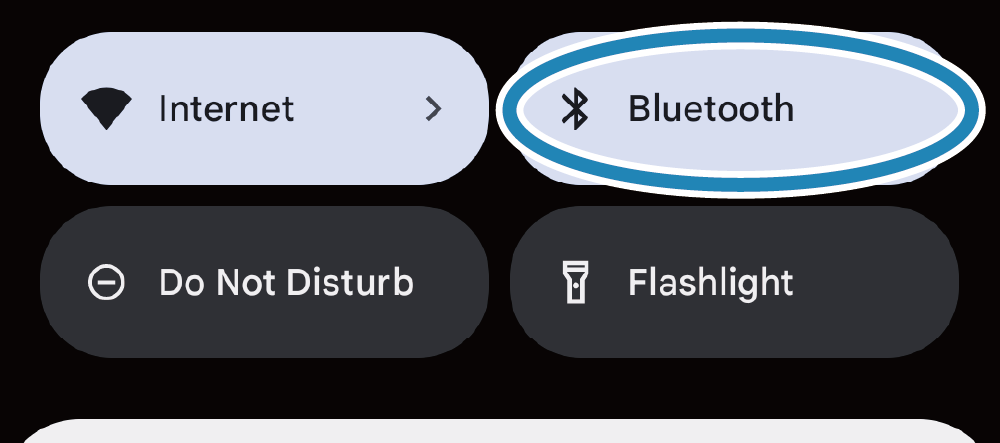
1. Turn on Bluetooth on your phone/tablet
- Turn Bluetooth On.
2. Pairing using the dedicated app
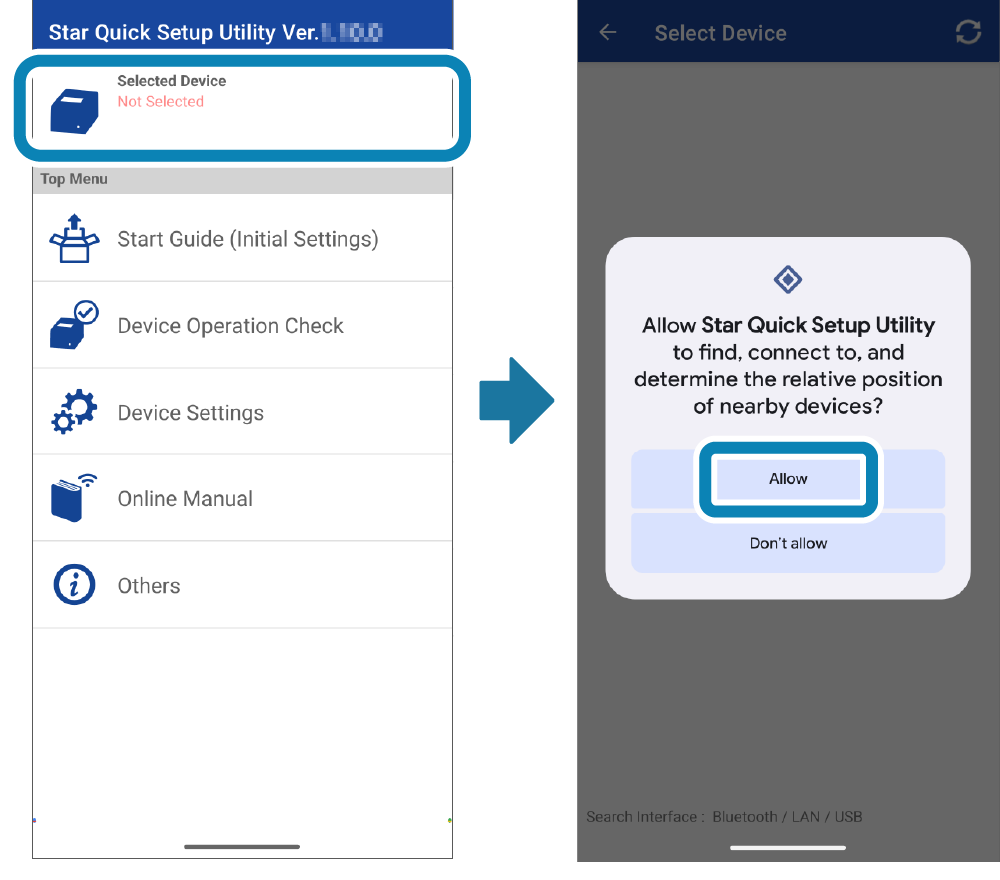
- Start Star Quick Setup Utility.
Tap [Selected Device].
If a screen appears asking for permission to detect devices, tap [Allow].
-
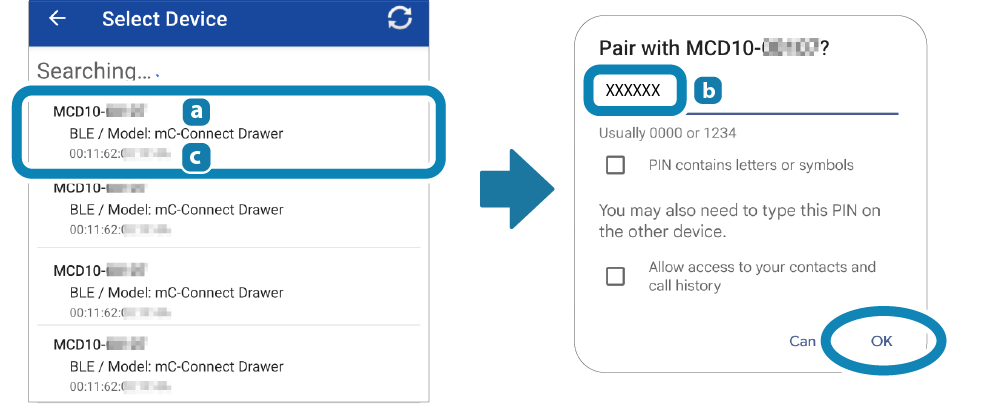
Check Bluetooth device name and Bluetooth device address, tap the corresponding device.
When a confirmation dialog box for pairing is displayed, tap [Yes].
At the initial communication, a Bluetooth pairing request screen is displayed.
"Usually 0000 or 1234" is displayed on the dialog box, but enter your passkey and tap [OK].
3. Confirm that pairing is complete
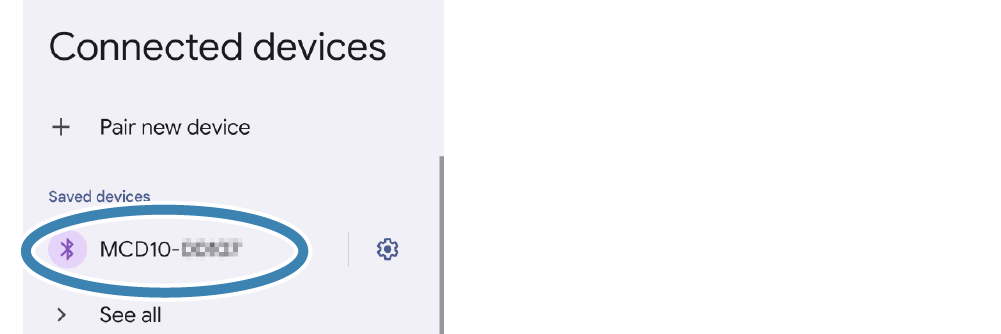
- Once pairing is complete, the paired device name will appear under "Saved devices" in the device settings.
Important notes when [New Pairing Permission] is set to OFF
When [New Pairing Permission] is set to OFF, re-pairing with already connected PC/tablets and new pairings with other PC/tablets are not permitted due to enhanced security.
When [New Pairing Permission] is set to OFF, do not perform "Forget Device" on the [Settings] screen for the already connected PC/tablet.
If you accidentally delete the device, then perform When You Cannot Connect (Initialization Procedure) and re-pair the phone/tablet.
If you wish to perform a new pairing, change the [New Pairing Permission] setting from OFF to ON in Star Quick Setup Utility [Device Settings] - [Bluetooth Settings] and tap [Apply].
For details on Star Quick Setup Utility, refer to Use App.
Pairing from a Windows device
The following steps must be performed after this product is turned on.
Turn ON/Off Power
1. Turn on Bluetooth on your PC/tablet
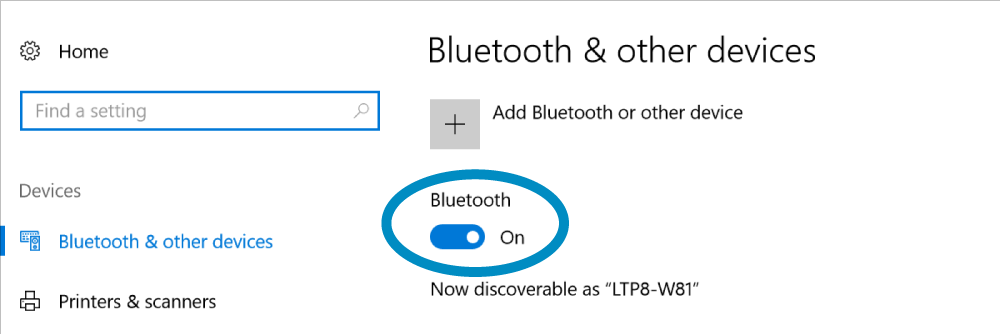
- Open [Settings]-[Bluetooth & devices] from start menu of Windows.
- Turn Bluetooth On.
2. Communicate from an app you are using
- Communicate with this product from the app you are using.
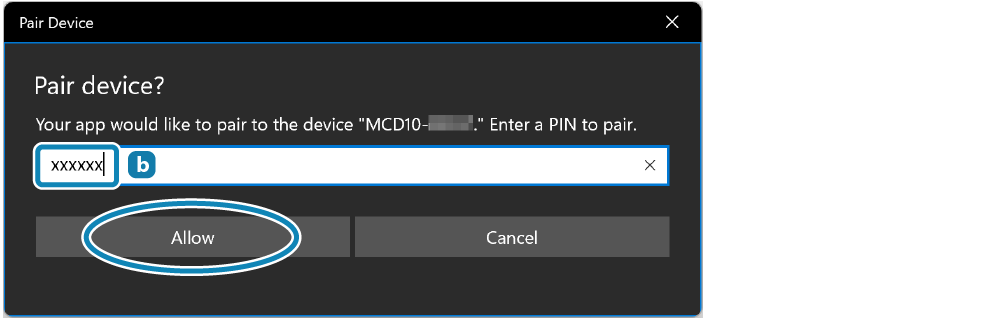
For communication methods, refer to the usage instructions of the app you are using. - At the initial communication, a Bluetooth pairing request screen is displayed.
Enter Passkey and click [Allow].
Important notes when [New Pairing Permission] is set to OFF
When [New Pairing Permission] is set to OFF, re-pairing with already connected PC/tablets and new pairings with other PC/tablets are not permitted due to enhanced security.
When [New Pairing Permission] is set to OFF, do not perform "Forget Device" on the [Settings] screen for the already connected PC/tablet.
If you accidentally delete the device, then perform When You Cannot Connect (Initialization Procedure) and re-pair the PC/tablets.
If you wish to perform a new pairing, then change the [New Pairing Permission] setting from OFF to ON in the "Bluetooth Utility".
For details on Bluetooth Utility, refer to Use App.