Connect with Wireless LAN
Connect the mC-Connect Drawer to a PC or tablet with wireless LAN.
Before Use: Check the Following
- Dedicated app is required to set up the wireless LAN connection.
For iOS and Android, install Star Quick Setup Utility.
For Windows, download Star Windows Software and install it to your host device.
Refer to Use App. - To connect using the dedicated app, turn on the following settings on your device.
・Bluetooth settings
・Positional information service settings
- Check the information of the product to be used when connecting it.
The information can be checked on the Product Information Label temporarily attached to the bottom of the product or on the ID label.
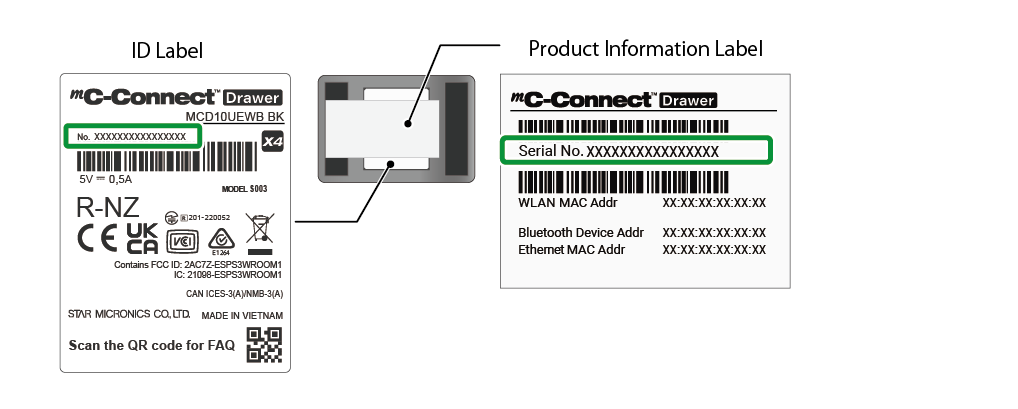
 Passkey:The last six digits of the product serial number.
Product serial number is the 16-digit number inside the green box.
Example:Product serial number:0229026189123456
Passkey:123456
Caution
To use a wireless LAN connection, disconnect the LAN cable.
When a LAN cable is connected, wireless LAN connection cannot be used.
The setting method varies depending on the OS of the device you are using.
Connect from an iOS device, Android device
Connect from a Windows device
Network to be connected
Connect from an iOS device, Android device
The following steps must be performed after this product is turned on.
Turn ON/Off Power
1. Connect this product to the network
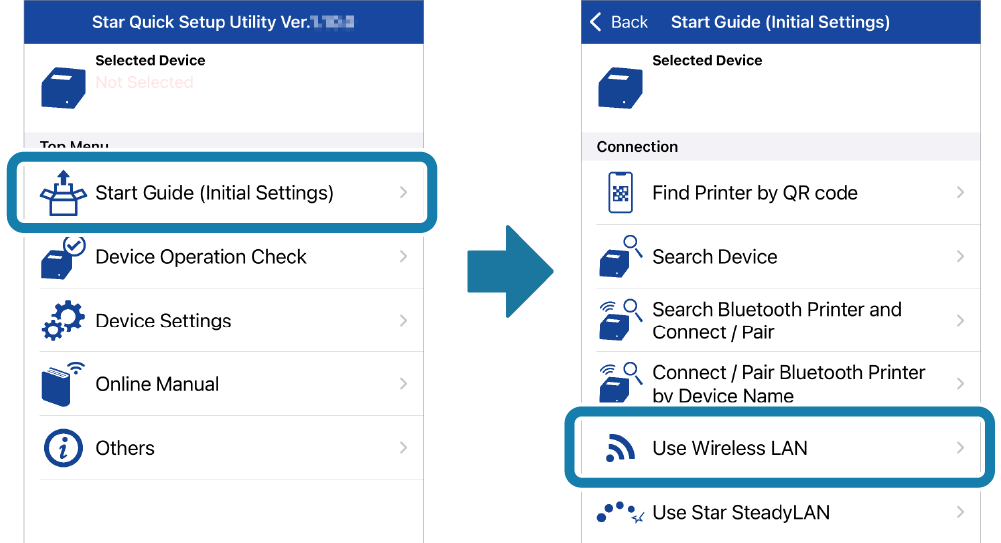
- Start Star Quick Setup Utility.
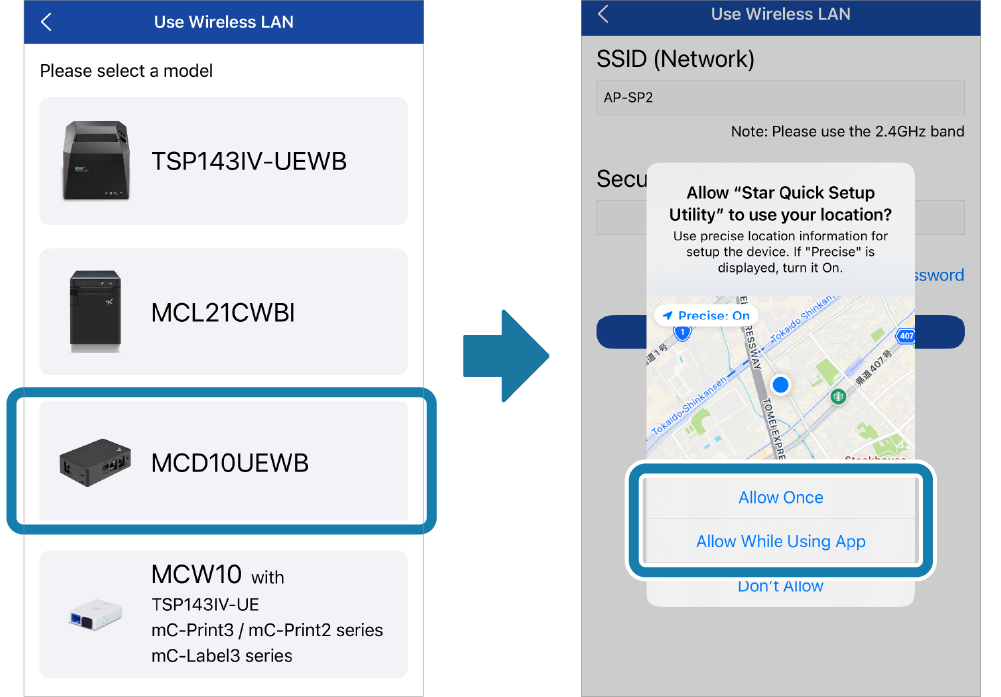
Open [Start Guide (Initial Settings)] - [Use Wireless LAN]. - Select [MCD10UEWB] from model selection.
Check the passkey on "Before you start" screen, and tap [Next].
When a location information permission confirmation screen appears, select any of the [Allow] options.
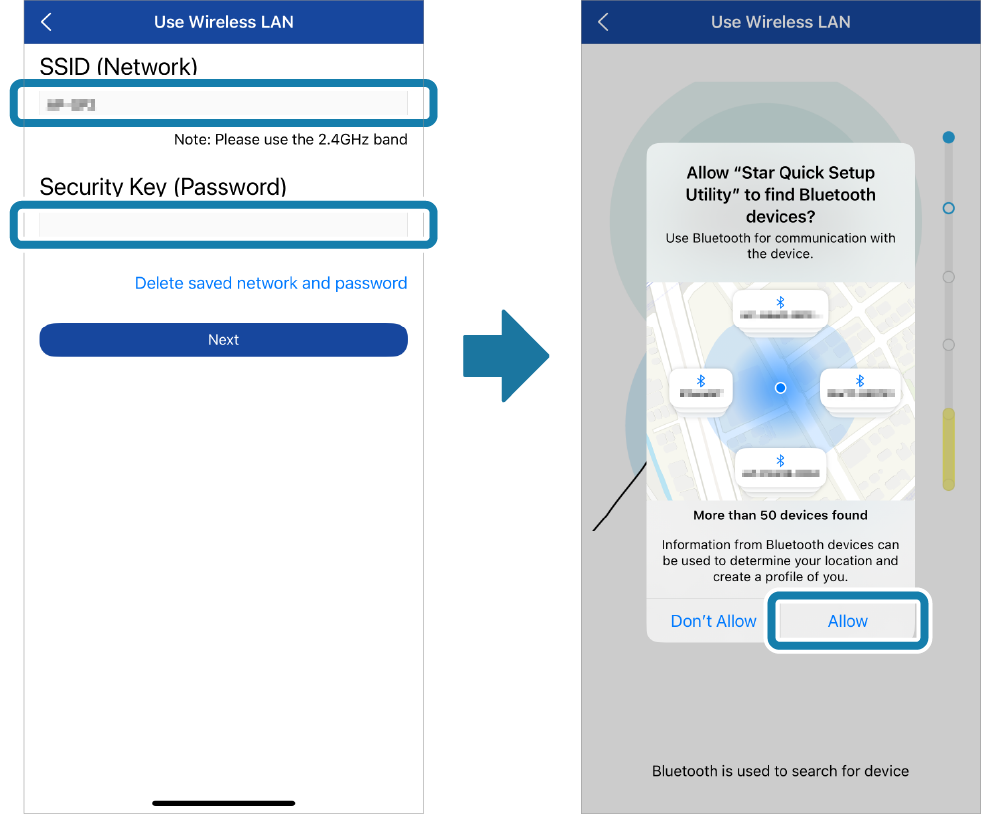
- Enter the SSID and Security Key of the network to be connected.
If a screen appears asking for permission to detect devices, tap [Allow].
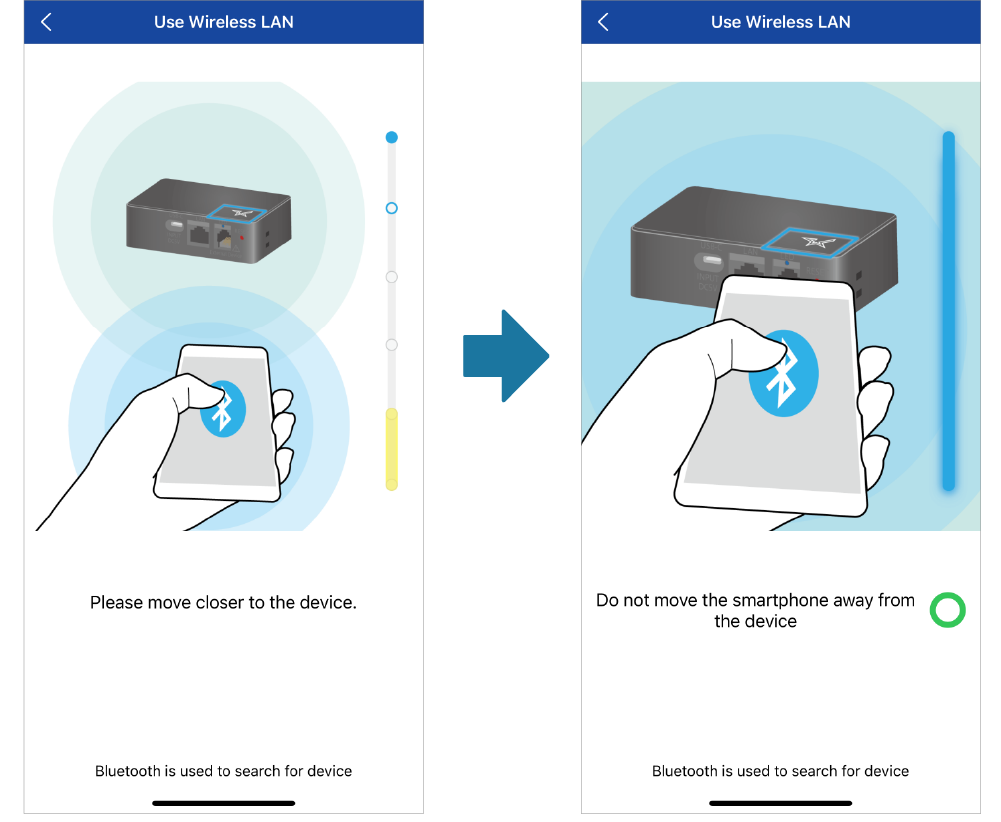
For Android devices, the SSID entry screen appears after device detection is allowed. - Bring the device closer to the LED of this product.
Do not move the device away from the product when the connection starts.
- Bluetooth pairing request screen is displayed.
For iOS device, enter the passkey and tap [Pair].
For Android device, "Usually 0000 or 1234" is displayed on the dialog box, but enter your passkey and tap [OK].
- Do not turn off the product power after the setting starts.
When the setting is completed, [Success] is displayed on the app.
When it is confirmed that an IP address is allocated to the product, the setting process is complete.
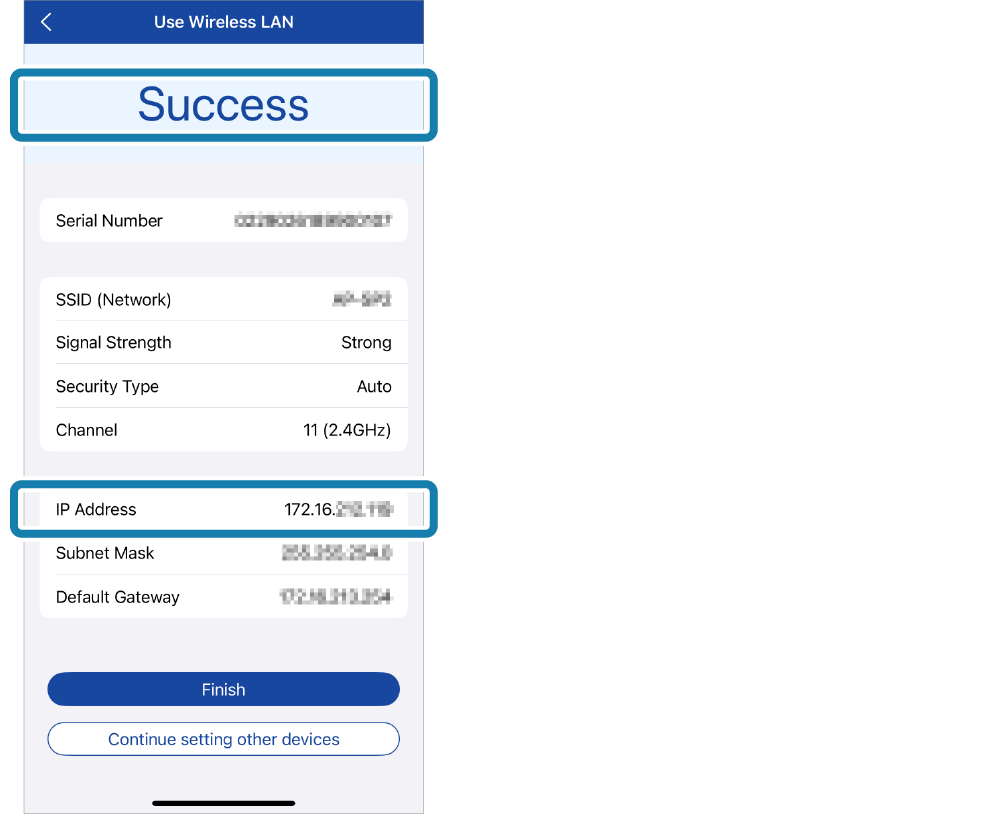
To set up multiple devices, tap [Continue setting other devices] to continue setting them up.
- You can set a device name (LAN) and a static IP address to identify this product.
Refer to Set Device Name (LAN) Set Static IP Address for details.
When using multiple units of this productt
Place the products apart from each other. When configuring settings, bring the device close to the product you want to communicate with.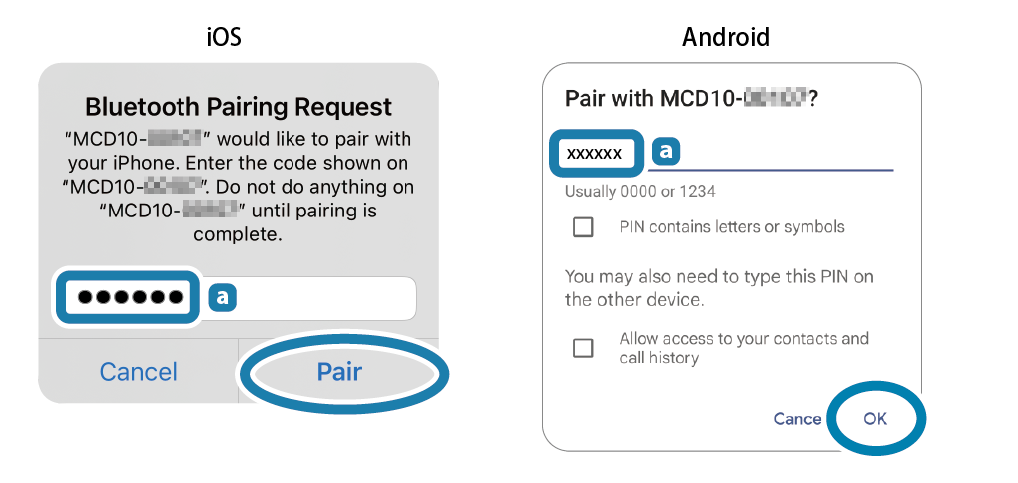
When "Failed" is displayed on the app
When "Failed" is displayed, the connection has failed.Check the information shown in the status and set it up again.
For confirmation of problems and countermeasures, please refer to FAQ - Wireless LAN Setting Problems.
Connect from a Windows device
The following steps must be performed after this product is turned on.
Turn ON/Off Power
Memo
1. Connect this product to the network
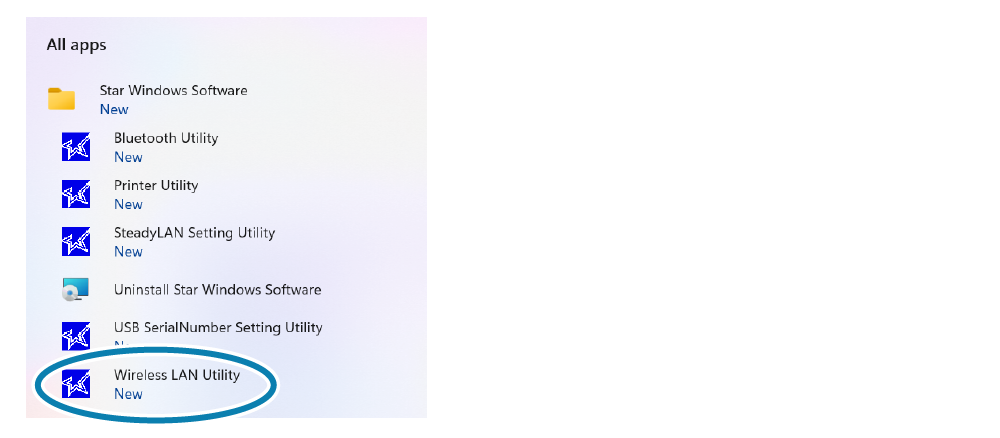
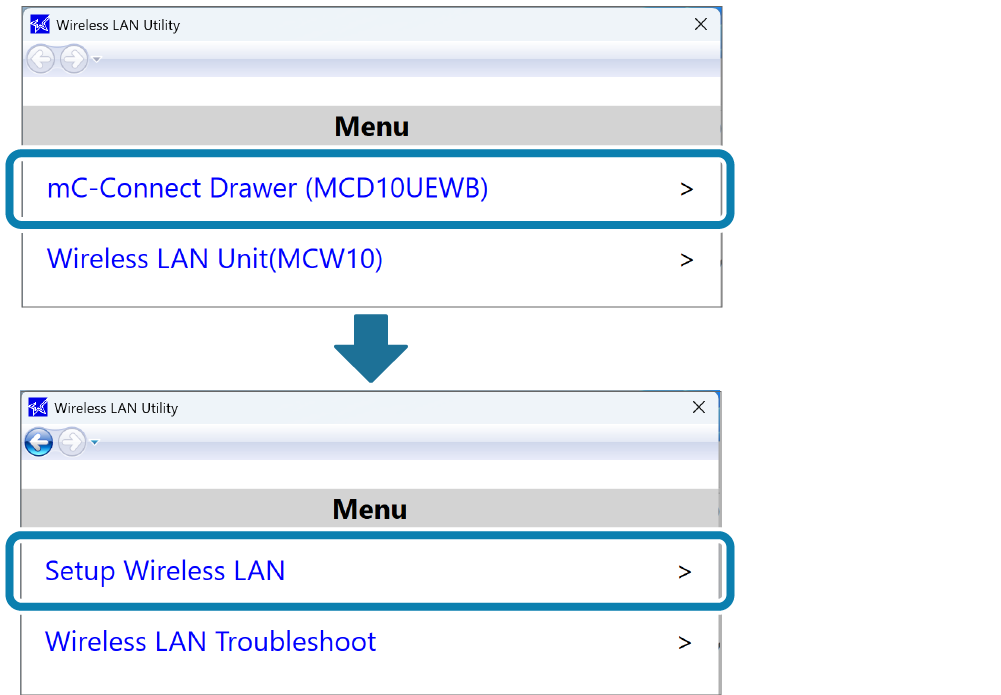
- Start [All apps]-[Star Windows Software]-[Wireless LAN Utility] from the Windows Start menu.
- Select [mC-Connect Drawer (MCD10UEWB)] from model selection.
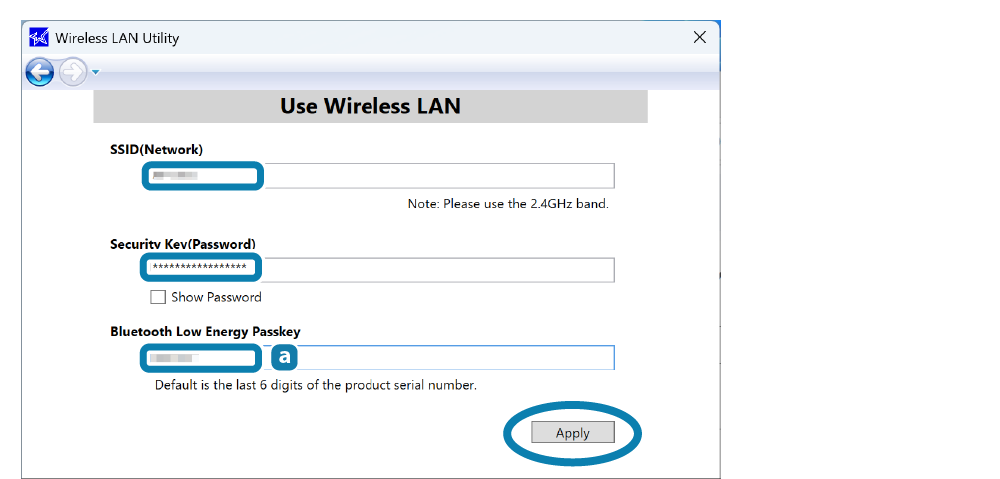
Click [Setup Wireless LAN]. Check the passkey on "Before you start" screen, and tap [Next]. - Enter the SSID and Security Key of the network, and a Bluetooth Low Energy passkey, click [Apply].
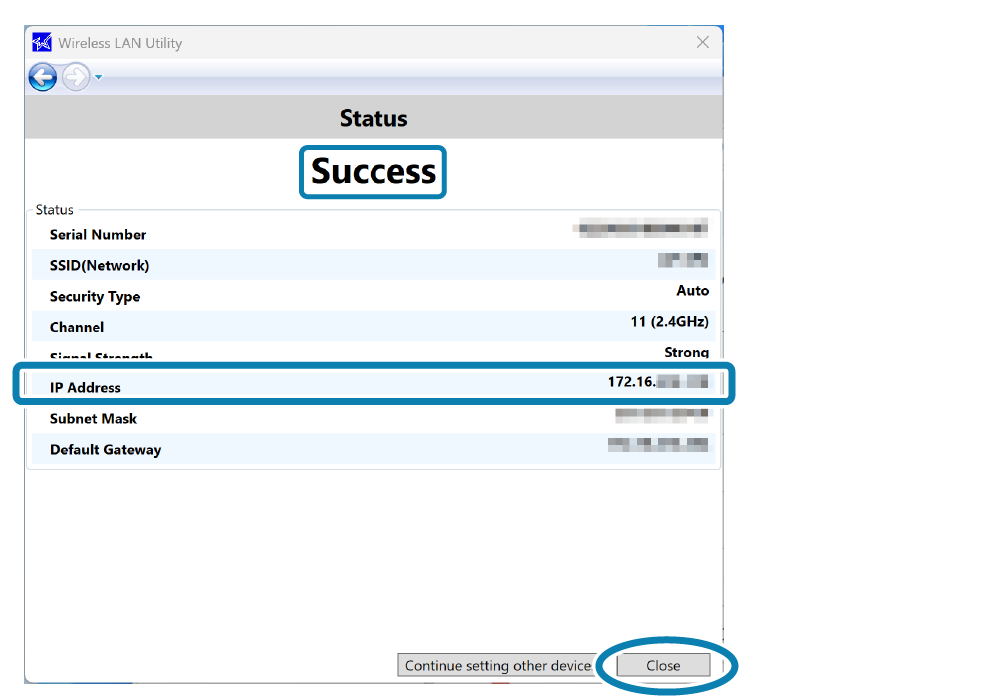
When a confirm dialog appears, click [Yes]. - When the setting is completed, [Success] is displayed on the app.
It is confirmed that an IP address is allocated to the product.
Click [Close] and the setting process is complete.
- You can set a device name (LAN) and a static IP address to identify this product.
Refer to Set Device Name (LAN) Set Static IP Address for details.
When "Failed" is displayed on the app
When "Failed" is displayed, the connection has failed.Check the information shown in the status and set it up again.
For confirmation of problems and countermeasures, please refer to FAQ - Wireless LAN Setting Problems.