Set Device Name (LAN)
Set a unique device name on the network-connected product.
By setting a device name, you can easily identify the device.
Before Use: Check the Following
- Dedicated app is required to set up a static IP address.
For iOS and Android, install Star Quick Setup Utility.
For Windows, download Star Windows Software and install it to your host device.
Refer to Use App. - Connect to a PC or tablet and check the IP address assigned to this product.
Refer to the following for detailed steps.
Connect with Wireless LAN
Connect with Ethernet
The setting method varies depending on the operating system of the device you are using.
Set from an iOS device, Android device
Set from Windows
Set from an iOS device, Android device
1. Connect from a dedicated app
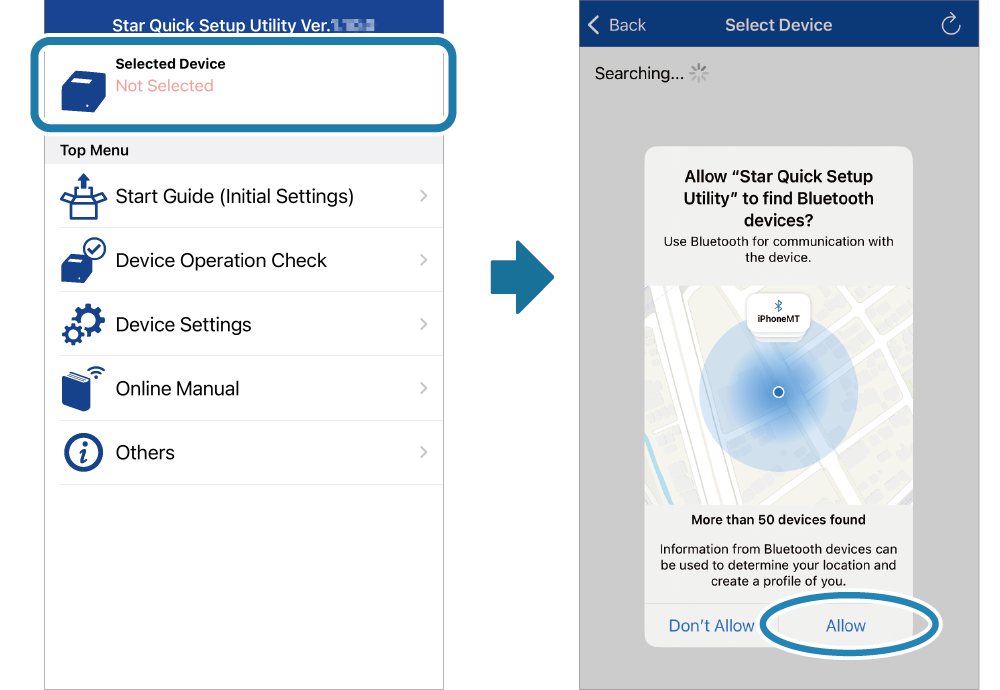
- Start Star Quick Setup Utility.
Tap [Selected Device].
If a screen appears asking for permission to detect devices, tap [Allow].
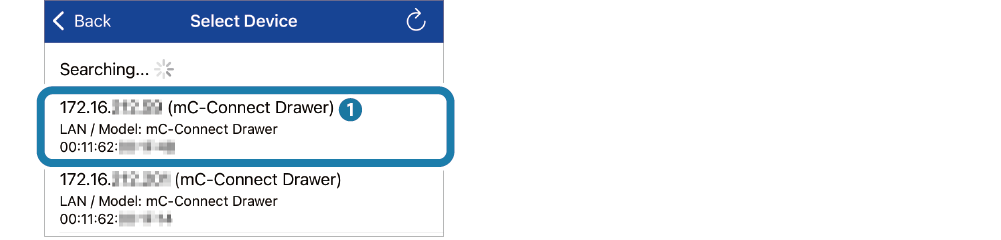
- Check the IP address
 and tap the corresponding device.
When a device confirmation screen appears, tap [Yes].
2. Set a device name
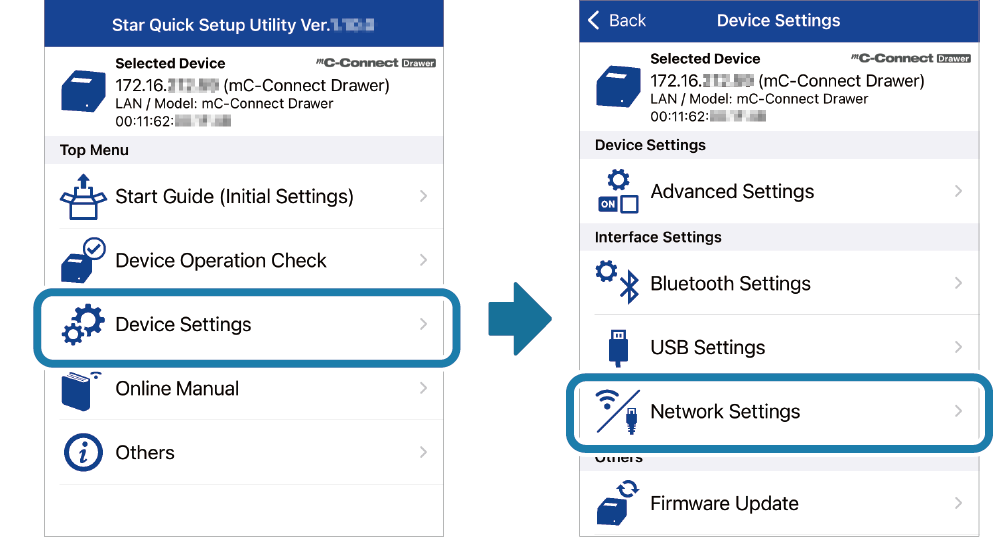
- Tap [Device Settings]-[Network Settings].
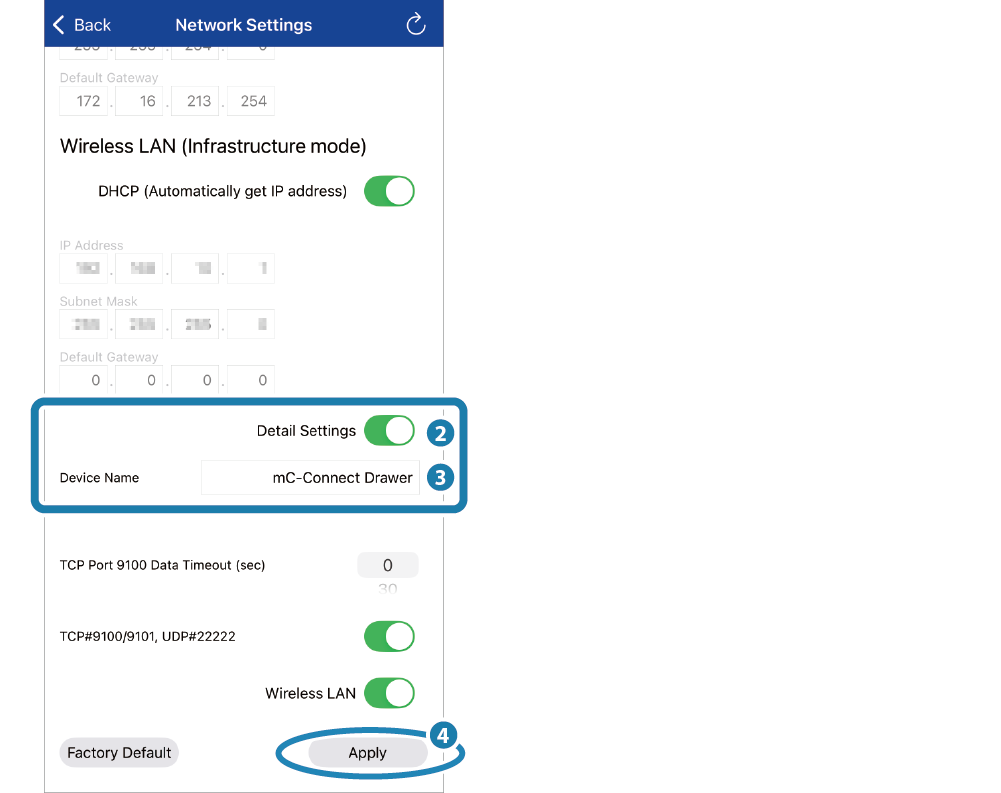
- Turn on the [Detail Settings]
 and enter a device name
 .
.
Tap [Apply] to write the settings to the product.
When the setting is completed, "Success" is displayed on the app.
Memo
If the device name is too long, a warning message is displayed in the app. In this case, shorten the device name.Set from Windows
1. Connect from a dedicated app
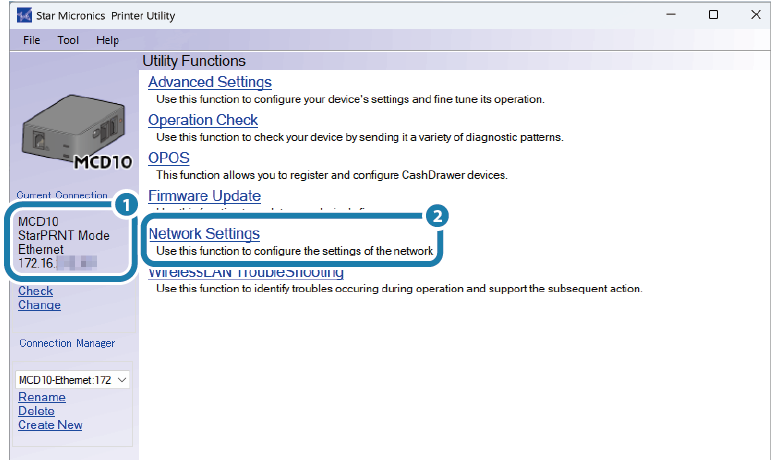
- Start [All apps]-[Star Windows Software]-[Printer Utility] from the Windows Start menu and connect to this product.
Click [Network Settings].
2. Set a device name
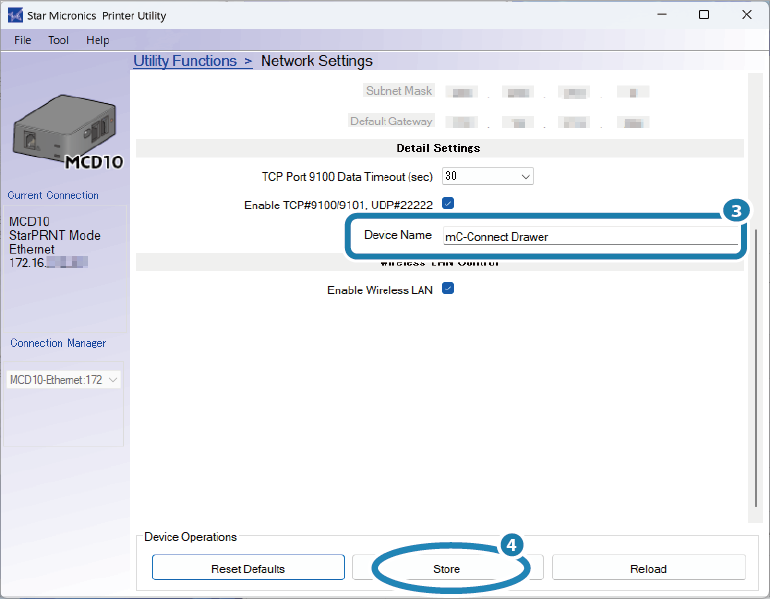
- Enter a device name in [Detail Settings].
Click [Store] to write the settings to the product.
When the setting is completed, "Success" is displayed on the app.
Memo
If the device name is too long, a warning message is displayed in the app. In this case, shorten the device name.