Set Static IP Address
Set a static IP address to this product when it is connected to a network.
By setting a static IP address, the IP address will not change due to the DHCP server, so you can continue to use the product at the same IP address.
Before Use: Check the Following
- Dedicated app is required to set up a statip IP address.
For iOS and Android, install Star Quick Setup Utility.
For Windows, download Star Windows Software and install it to your host device.
Refer to Use App. - Connect to a PC or tablet and check the IP address assigned to this product.
Refer to the following for detailed steps.
Connect with Wireless LAN
Connect with Ethernet
The connection method varies depending on the operating system of the device you are using.
Set from an iOS device, Android device
Set from Windows
Set from an iOS device, Android device
1. Connect from a dedicated app
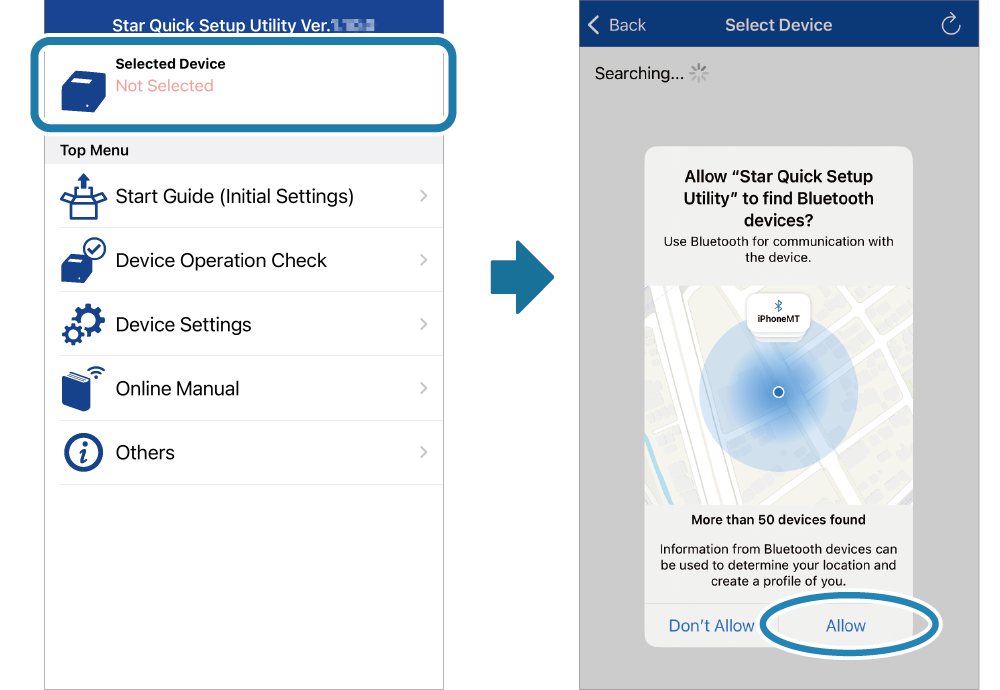
- Start Star Quick Setup Utility.
Tap [Selected Device].
If a screen appears asking for permission to detect devices, tap [Allow].
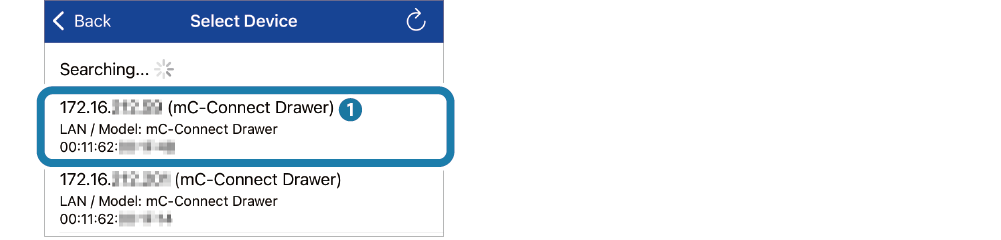
- Check the IP address
 and tap the corresponding device.
When a device confirmation screen appears, tap [Yes].
2. Set Static IP Address
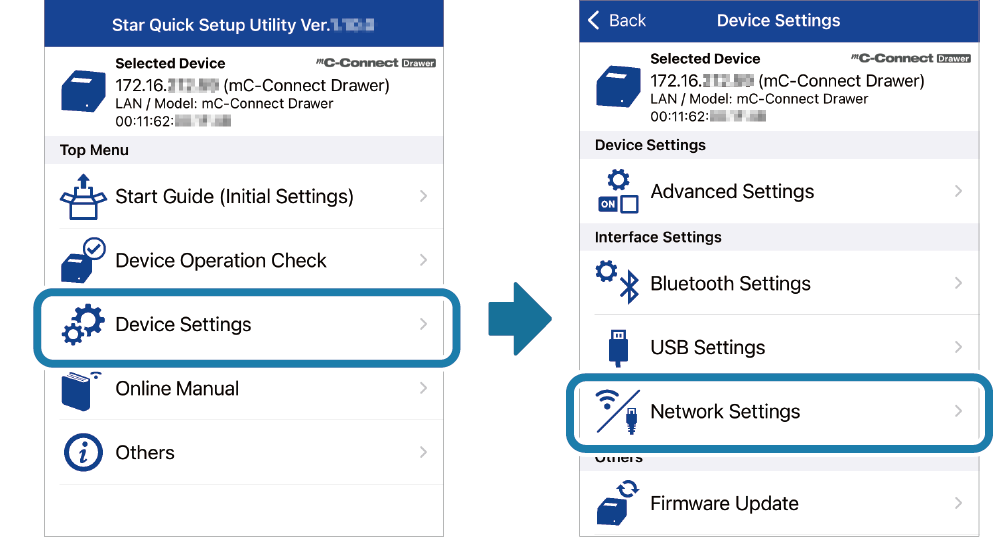
- Tap [Device Settings]-[Network Settings].
- For wired LAN, configure LAN (in the green box), and for wireless LAN, configure wireless LAN (infrastructure mode) (in the blue box) as shown in the following.
 DHCP (Automatically get IP address):Off
 Enter IP address and Subnet Mask
Tap [Apply] to write the settings to the product.
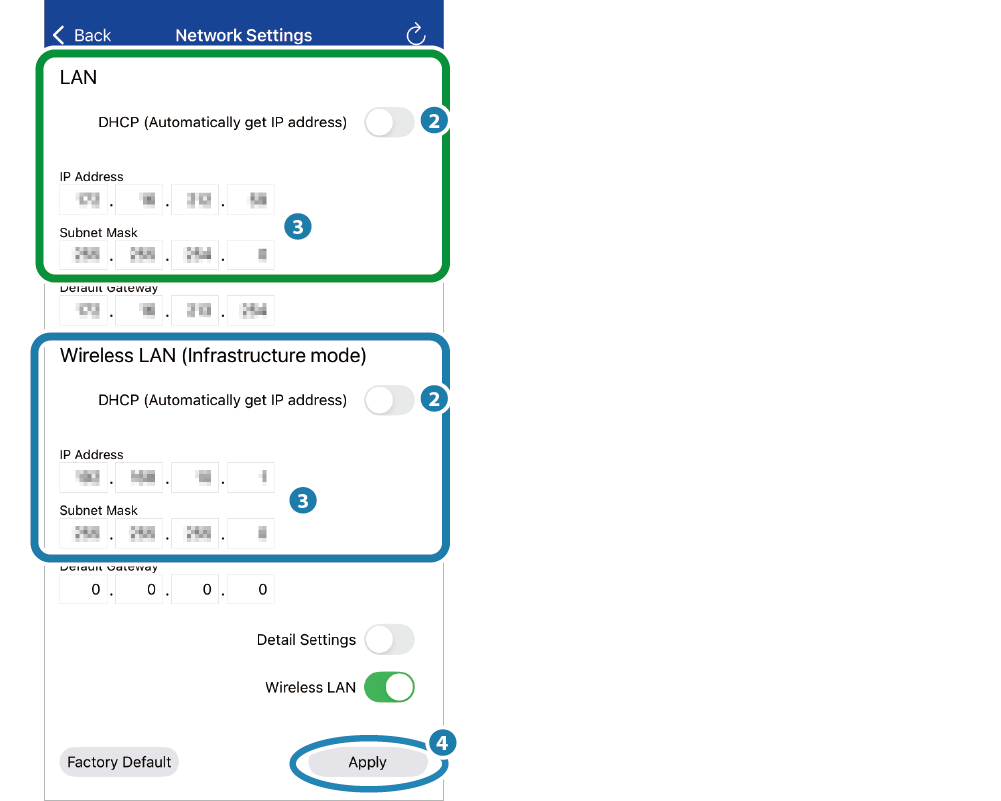
When the setting is completed, "Success" is displayed on the app.
Memo
Ask your network administrator about the static IP address and subnet mask of the network to be connected.Set from Windows
1. Connect from a dedicated app
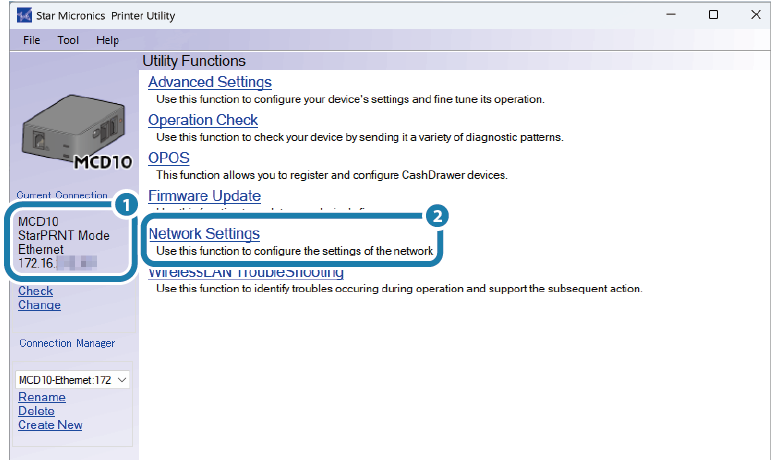
- Start [All apps]-[Star Windows Software]-[Printer Utility] from the Windows Start menu and connect to this product.
Click [Network Settings].
2. Set Static IP Address
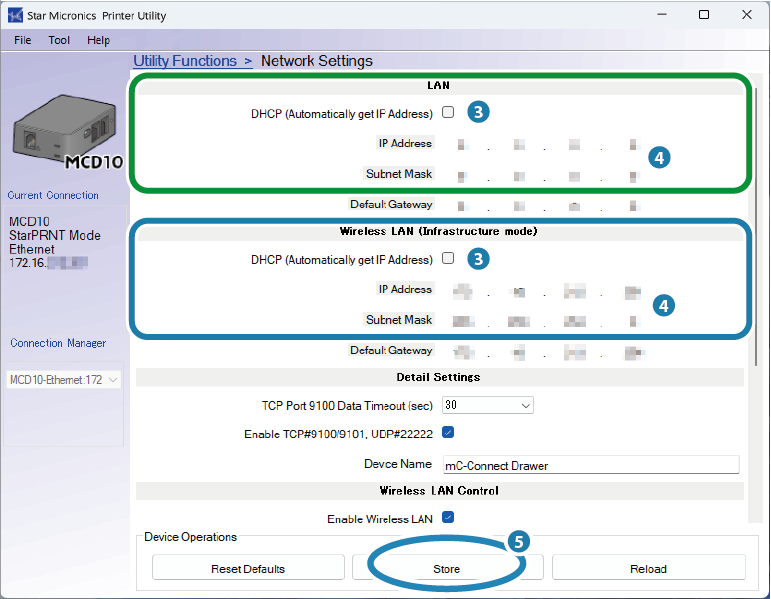
- For wired LAN, configure LAN (in the green box), and for wireless LAN, configure wireless LAN (infrastructure mode) (in the blue box) as shown in the following.
DHCP(Automatically get IP address):Off
Enter IP address and Subnet mask
Click [Store] to write the settings to the product.
When the setting is completed, "Success" is displayed on the app.
メモ
Ask your network administrator about the static IP address and subnet mask of the network to be connected.