

Pairing(Bluetooth Low Energy)
If the device and the printer have not been paired, a pairing request is presented to the user.
In addition, it is possible to determine the outcome of the user’s action in response to the pairing request.
Refer to the following steps to connect the device and the printer and receive the result of the pairing.
Memo
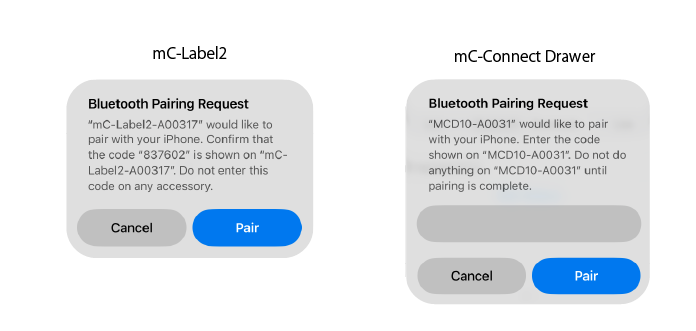
- 「Passkey Entry」 A passkey entry is required. There is a time limit for input, and the required passkey value varies by model. Refer to the manual for each model and confirm the passkey to be entered in advance.
- 「Numeric comparison」 Pairing codes are displayed on the host device and printed by the printer. Confirm that the pairing codes match, press the feed button on the printer, and approve the confirmation on the host device.
Pairing is performed only during the initial connection with the printer and will not occur again thereafter after a successful pairing.
However, if you reset the Bluetooth settings on your device or replace the printer, pairing will be required again.
Pairing procedure
Refer to the following steps to connect the device and the printer and receive the result of the pairing.
1Check the Bluetooth Low Energy connection information.
Use StarDeviceDiscoveryManagerto check the Bluetooth Low Energy address of the printer to pair with.
There is sample code at the bottom of the page. Refer to it as a reference.
2Create the printer’s connection target information.
Set the interfaceTypeused for communication to BluetoothLE, set the identifier to the Bluetooth Low Energy address of the destination.
let settings = StarConnectionSettings(interfaceType: .bluetoothLE,
identifier: “00:11:62:00:00:01”)
3Provide the printer’s connection target information and obtain a StarPrinter instance.
Set the timeout to 30 seconds.
let printer = StarPrinter(settings)
printer.openTimeout = 30_000
4Call the open method to connect to the printer.
Task {
    do {
        try await printer.open()
5 If the printer has not been paired with the device, the following pairing request screen will be displayed. Follow the on-screen instructions to proceed.
6Implement error processing. You can determine pairing failure from the error instance type and StarIO10ErrorCode.
} catch StarIO10Error.notFound(message: let message, errorCode: let errorCode ){
            // Printer not found.
            // This may be due to the printer not being turned on or incorrect connection information.

        }catch StarIO10Error.illegalDeviceState(message: let message, errorCode: let errorCode){
            if (errorCode == StarIO10ErrorCode.bluetoothUnavailable) {
                // The Bluetooth function of the host device cannot be used.
            }
            else if (errorCode == StarIO10ErrorCode.bluetoothLeDeviceIsNotPaired) {
                // Pairing failed. Please try again with the correct operation.
            }
      }
} catch let error {
    print("Unexpected error: \(error).")
}
7Call the closemethod to disconnect from the printer.
defer {
    Task {
        await printer.close()
    }
}
private var manager: (any StarDeviceDiscoveryManager)?

func discovery() {
    do {
        let interfaceTypes:[InterfaceType]  = [InterfaceType.bluetoothLE]
        try manager = StarDeviceDiscoveryManagerFactory.create(interfaceTypes: interfaceTypes)
        manager?.discoveryTime = 10_000
        manager?.delegate = self

        try manager?.startDiscovery()
    } catch StarIO10Error.illegalDeviceState(message: let message, errorCode: let errorCode) {
        if (errorCode == StarIO10ErrorCode.bluetoothUnavailable) {
            // Example of error: Bluetooth capability of host device is disabled.
            // This may be due to the host device's Bluetooth being off, the host device not having Bluetooth, etc.
        }
    } catch let error {
        print("Error: \(error)")
    }
}

nonisolated func manager(_ manager: any StarDeviceDiscoveryManager, didFind printer: StarPrinter) {
   let interfaceType = printer.connectionSettings.interfaceType
   let identifier = printer.connectionSettings.identifier
   print("Found printer: \(identifier), \(printer.information?.model, default: ""), \(printer.information?.detail.bluetoothLE.deviceName ?? "")")
}

nonisolated func managerDidFinishDiscovery(_ manager: any StarDeviceDiscoveryManager) {
   print("Discovery finished.")
}tui
  private func pairing(identifier: String) async{
    var settings = StarConnectionSettings(interfaceType: .bluetoothLE, identifier: identifier);
    var printer = StarPrinter(settings);

    do{
      try await printer.open();

    } catch StarIO10Error.notFound(message: let message, errorCode: let errorCode ){
      // Printer not found.
      // This may be due to the printer not being turned on or incorrect connection information.

    }catch StarIO10Error.illegalDeviceState(message: let message, errorCode: let errorCode){
      if (errorCode == StarIO10ErrorCode.bluetoothUnavailable) {
        // The Bluetooth function of the host device cannot be used.
      }
      else if (errorCode == StarIO10ErrorCode.bluetoothLeDeviceIsNotPaired) {
        // Pairing failed. Please try again with the correct operation.
      }
    } catch let error {
      print("Unexpected error: \(error).")
    }

    await printer.close();
  }
If the device and the printer have not been paired, a pairing request is presented to the user.
In addition, it is possible to determine the outcome of the user’s action in response to the pairing request.
Refer to the following steps to connect the device and the printer and receive the result of the pairing.
Memo
- 「Passkey Entry」 A passkey entry is required. There is a time limit for input, and the required passkey value varies by model. Refer to the manual for each model and confirm the passkey to be entered in advance.
- 「Numeric comparison」 Pairing codes are displayed on the host device and printed by the printer. Confirm that the pairing codes match, press the feed button on the printer, and approve the confirmation on the host device.
Pairing is performed only during the initial connection with the printer and will not occur again thereafter after a successful pairing.
However, if you reset the Bluetooth settings on your device or replace the printer, pairing will be required again.
Pairing procedure
Refer to the following steps to connect the device and the printer and receive the result of the pairing.
1Check the Bluetooth Low Energy connection information.
Use StarDeviceDiscoveryManagerto check the Bluetooth Low Energy address of the printer to pair with.
There is sample code at the bottom of the page. Refer to it as a reference.
2Create the printer’s connection target information.
Set the interfaceTypeused for communication to BluetoothLE, set the identifier to the Bluetooth Low Energy address of the destination.
val settings = StarConnectionSettings(InterfaceType.BluetoothLE, “00:11:62:00:00:01”)
3Provide the printer’s connection target information and obtain a StarPrinter instance.
val printer = StarPrinter(settings, context)
4Call the openAsync method to connect to the printer.
val job = SupervisorJob()
val scope = CoroutineScope(Dispatchers.Default + job)

scope.launch {
    try {
        printer.openAsync().await()
5 If the printer has not been paired with the device, the following pairing request screen will be displayed. Follow the on-screen instructions to proceed.
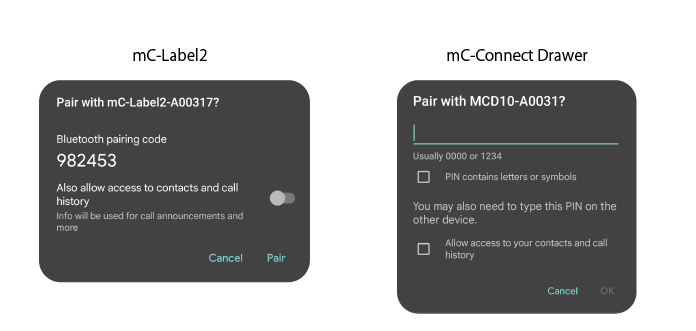
In case of Android device, disable “Silent Mode”. If it is enabled, the message required for pairing will not be notified, and the pairing operation cannot be completed.
6Implement error processing. You can determine pairing failure from the error instance type and StarIO10ErrorCode.
} catch (e: StarIO10NotFoundException) {
    // Printer not found.
    // This may be due to the printer not being turned on or incorrect connection information.
} catch (e: StarIO10IllegalHostDeviceStateException) {
    when (e.errorCode) {
        StarIO10ErrorCode.BluetoothUnavailable -> {
            // The Bluetooth function of the host device cannot be used.
        }
        StarIO10ErrorCode.BluetoothLeDeviceIsNotPaired -> {
            // Pairing failed. Please try again with the correct operation.
        }

        else -> {
            Log.d("Discovery", "Error: $e")
        }
    }
7Call the closeAync method to disconnect from the printer.
finally {
    printer.closeAsync().await()
private var manager: StarDeviceDiscoveryManager? = null

fun discovery(  context: Context) {
    var log = ""
    val interfaceTypes: List<InterfaceType> = listOf(InterfaceType.BluetoothLE)
    try {
        manager =
            StarDeviceDiscoveryManagerFactory.create(
                interfaceTypes,
                context,
            )

        manager?.discoveryTime = 10_000
        manager?.callback = createDiscoveryManagerCallback()

        manager?.startDiscovery()

    } catch (e: StarIO10NotFoundException) {
        // Printer not found.
        // This may be due to the printer not being turned on or incorrect connection information.
    } catch (e: StarIO10IllegalHostDeviceStateException) {
        when (e.errorCode) {
            StarIO10ErrorCode.BluetoothUnavailable -> {
                // The Bluetooth function of the host device cannot be used.
            }

            StarIO10ErrorCode.BluetoothLeDeviceIsNotPaired -> {
                // Pairing failed. Please try again with the correct operation.
            }

            else -> {
                Log.d("Discovery", "Error: $e")
            }
        }
    }
}

private fun createDiscoveryManagerCallback(): StarDeviceDiscoveryManager.Callback =
    object : StarDeviceDiscoveryManager.Callback {
        override fun onPrinterFound(printer: StarPrinter) {
            val interfaceType = printer.connectionSettings.interfaceType
            val identifier = printer.connectionSettings.identifier

            val log =
                "Found printer: $identifier, ${printer.information?.model}, ${printer.information?.detail?.bluetoothLE?.deviceName ?: ""}"
            Log.d("Discovery", "Found printer: $log")
        }

        override fun onDiscoveryFinished() {
            val log = "Discovery finished."
            Log.d("Discovery", log)
        }
    }
private suspend fun pairing(identifier: String, context: Context) {
    val settings = StarConnectionSettings(InterfaceType.BluetoothLE, identifier);
    val printer: StarPrinter = StarPrinter(settings, context)

    try {
        printer.openAsync().await()

    } catch (e: StarIO10NotFoundException) {
        // Printer not found.
        // This may be due to the printer not being turned on or incorrect connection information.
    } catch (e: StarIO10IllegalHostDeviceStateException) {
        when (e.errorCode) {
            StarIO10ErrorCode.BluetoothUnavailable -> {
                // The Bluetooth function of the host device cannot be used.
            }

            StarIO10ErrorCode.BluetoothLeDeviceIsNotPaired -> {
                // Pairing failed. Please try again with the correct operation.
            }

            else -> {
                Log.d("Discovery", "Error: $e")
            }
        }
    }

    printer.closeAsync().await()
}