

ペアリングを行う(Bluetooth Low Energy)
デバイスとプリンターがペアリングされていない場合、ユーザーに対してペアリング要求を行います。
また、ペアリング要求に対するユーザーの操作結果についても判定することができます。
以下の手順を参考に、デバイスとプリンターの接続を行い、ペアリングの結果を受け取ってください。
Memo
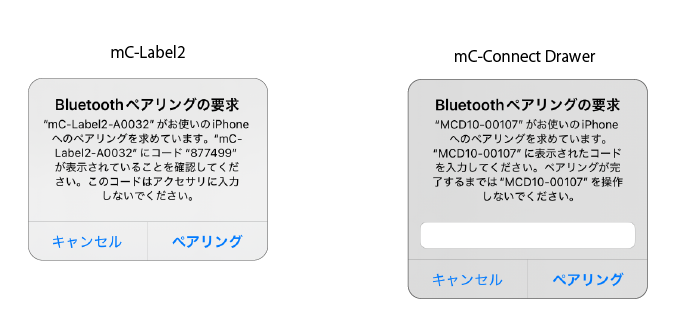
- 「Passkey Entry」 パスキーの入力が必要です。入力時間には制限があり、モデルによってパスキーの設定値が異なります。各モデルに付属のマニュアルを参考に、入力するパスキーを事前にご確認ください。
- 「Numeric comparison」 ペアリングコードがホストデバイスに表示され、プリンターからペアリングコードが印字されます。ペアリングコードが一致していることを確認し、プリンターのフィードボタンを押し、ホストデバイスの確認に対して承認を行ってください。
ペアリングは初回のプリンターとの接続時にのみ行われ、一度ペアリングに成功すれば次回以降行われません。
ただし、お使いのデバイスのBluetooth設定を初期化した場合やプリンターを交換した際には、再度ペアリングが必要となります。
ペアリング手順
以下の手順を参考に、デバイスとプリンターの接続を行い、ペアリングの結果を受け取ってください。
1Bluetooth Low Energyの接続情報を調べます。
StarDeviceDiscoveryManagerを使って、ペアリングを行いたいプリンターのBluetooth Low Energyのデバイスアドレスを調べます。
ページ下部にサンプルコードがありますので参考にしてください。
2プリンターの接続先情報を作ります。
通信に使用するinterfaceTypeをBluetoothLE、接続先を指定するidentifierにBluetooth Low Energyのアドレスをセットしてください。
let settings = StarConnectionSettings(interfaceType: .bluetoothLE,
identifier: “00:11:62:00:00:01”)
3プリンターの接続先情報を与えて、StarPrinterインスタンスを取得します。
タイムアウトを30秒に設定してください。
let printer = StarPrinter(settings)
printer.openTimeout = 30_000
4プリンターに接続するためopenメソッドを呼び出します。
Task {
    do {
        try await printer.open()
5 プリンターとデバイスのペアリングが行われていない場合、以下のペアリング要求画面が表示されます。画面の案内にしたがって操作を行ってください。
6エラー時の処理を実装します。errorインスタンスの型とStarIO10ErrorCodeによりペアリングの失敗を判別できます。
} catch StarIO10Error.notFound(message: let message, errorCode: let errorCode ){
            // Printer not found.
            // This may be due to the printer not being turned on or incorrect connection information.

        }catch StarIO10Error.illegalDeviceState(message: let message, errorCode: let errorCode){
            if (errorCode == StarIO10ErrorCode.bluetoothUnavailable) {
                // The Bluetooth function of the host device cannot be used.
            }
            else if (errorCode == StarIO10ErrorCode.bluetoothLeDeviceIsNotPaired) {
                // Pairing failed. Please try again with the correct operation.
            }
      }
} catch let error {
    print("Unexpected error: \(error).")
}
7プリンターとの接続を切断するためcloseメソッドを呼び出します。
defer {
    Task {
        await printer.close()
    }
}
private var manager: (any StarDeviceDiscoveryManager)?

func discovery() {
    do {
        let interfaceTypes:[InterfaceType]  = [InterfaceType.bluetoothLE]
        try manager = StarDeviceDiscoveryManagerFactory.create(interfaceTypes: interfaceTypes)
        manager?.discoveryTime = 10_000
        manager?.delegate = self

        try manager?.startDiscovery()
    } catch StarIO10Error.illegalDeviceState(message: let message, errorCode: let errorCode) {
        if (errorCode == StarIO10ErrorCode.bluetoothUnavailable) {
            // Example of error: Bluetooth capability of host device is disabled.
            // This may be due to the host device's Bluetooth being off, the host device not having Bluetooth, etc.
        }
    } catch let error {
        print("Error: \(error)")
    }
}

nonisolated func manager(_ manager: any StarDeviceDiscoveryManager, didFind printer: StarPrinter) {
   let interfaceType = printer.connectionSettings.interfaceType
   let identifier = printer.connectionSettings.identifier
   print("Found printer: \(identifier), \(printer.information?.model, default: ""), \(printer.information?.detail.bluetoothLE.deviceName ?? "")")
}

nonisolated func managerDidFinishDiscovery(_ manager: any StarDeviceDiscoveryManager) {
   print("Discovery finished.")
}tui
  private func pairing(identifier: String) async{
    var settings = StarConnectionSettings(interfaceType: .bluetoothLE, identifier: identifier);
    var printer = StarPrinter(settings);

    do{
      try await printer.open();

    } catch StarIO10Error.notFound(message: let message, errorCode: let errorCode ){
      // Printer not found.
      // This may be due to the printer not being turned on or incorrect connection information.

    }catch StarIO10Error.illegalDeviceState(message: let message, errorCode: let errorCode){
      if (errorCode == StarIO10ErrorCode.bluetoothUnavailable) {
        // The Bluetooth function of the host device cannot be used.
      }
      else if (errorCode == StarIO10ErrorCode.bluetoothLeDeviceIsNotPaired) {
        // Pairing failed. Please try again with the correct operation.
      }
    } catch let error {
      print("Unexpected error: \(error).")
    }

    await printer.close();
  }
デバイスとプリンターがペアリングされていない場合、ユーザーに対してペアリング要求を行います。
また、ペアリング要求に対するユーザーの操作結果についても判定することができます。
以下の手順を参考に、デバイスとプリンターの接続を行い、ペアリングの結果を受け取ってください。
Memo
- 「Passkey Entry」 パスキーの入力が必要です。入力時間には制限があり、モデルによってパスキーの設定値が異なります。各モデルに付属のマニュアルを参考に、入力するパスキーを事前にご確認ください。
- 「Numeric comparison」 ペアリングコードがホストデバイスに表示され、プリンターからペアリングコードが印字されます。ペアリングコードが一致していることを確認し、プリンターのフィードボタンを押し、ホストデバイスの確認に対して承認を行ってください。
ペアリングは初回のプリンターとの接続時にのみ行われ、一度ペアリングに成功すれば次回以降行われません。
ただし、お使いのデバイスのBluetooth設定を初期化した場合やプリンターを交換した際には、再度ペアリングが必要となります。
ペアリング手順
以下の手順を参考に、デバイスとプリンターの接続を行い、ペアリングの結果を受け取ってください。
1Bluetooth Low Energyの接続情報を調べます。
StarDeviceDiscoveryManagerを使って、ペアリングを行いたいプリンターのBluetooth Low Energyのデバイスアドレスを調べます。
ページ下部にサンプルコードがありますので参考にしてください。
2プリンターの接続先情報を作ります。
通信に使用するinterfaceTypeをBluetoothLE、接続先を指定するidentifierにBluetooth Low Energyのアドレスをセットしてください。
val settings = StarConnectionSettings(InterfaceType.BluetoothLE, “00:11:62:00:00:01”)
3プリンターの接続先情報を与えて、StarPrinterインスタンスを取得します。
val printer = StarPrinter(settings, context)
4プリンターに接続するためopenAsyncメソッドを呼び出します。
val job = SupervisorJob()
val scope = CoroutineScope(Dispatchers.Default + job)

scope.launch {
    try {
        printer.openAsync().await()
5 プリンターとデバイスのペアリングが行われていない場合、以下のペアリング要求画面が表示されます。画面の案内にしたがって操作を行ってください。
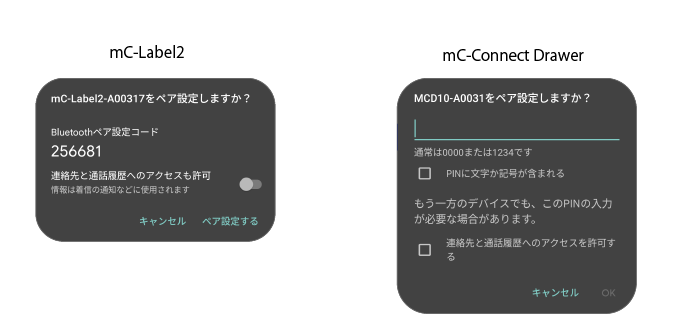
Androidでは「サイレントモード」を無効にしてください。有効となっている場合、ペアリングに必要なメッセージが通知されず、ペアリング操作を完了することができません。
6エラー時の処理を実装します。errorインスタンスの型とStarIO10ErrorCodeによりペアリングの失敗を判別できます。
} catch (e: StarIO10NotFoundException) {
    // Printer not found.
    // This may be due to the printer not being turned on or incorrect connection information.
} catch (e: StarIO10IllegalHostDeviceStateException) {
    when (e.errorCode) {
        StarIO10ErrorCode.BluetoothUnavailable -> {
            // The Bluetooth function of the host device cannot be used.
        }
        StarIO10ErrorCode.BluetoothLeDeviceIsNotPaired -> {
            // Pairing failed. Please try again with the correct operation.
        }

        else -> {
            Log.d("Discovery", "Error: $e")
        }
    }
7プリンターとの接続を切断するためcloseAsyncメソッドを呼び出します。
finally {
    printer.closeAsync().await()
private var manager: StarDeviceDiscoveryManager? = null

fun discovery(  context: Context) {
    var log = ""
    val interfaceTypes: List<InterfaceType> = listOf(InterfaceType.BluetoothLE)
    try {
        manager =
            StarDeviceDiscoveryManagerFactory.create(
                interfaceTypes,
                context,
            )

        manager?.discoveryTime = 10_000
        manager?.callback = createDiscoveryManagerCallback()

        manager?.startDiscovery()

    } catch (e: StarIO10NotFoundException) {
        // Printer not found.
        // This may be due to the printer not being turned on or incorrect connection information.
    } catch (e: StarIO10IllegalHostDeviceStateException) {
        when (e.errorCode) {
            StarIO10ErrorCode.BluetoothUnavailable -> {
                // The Bluetooth function of the host device cannot be used.
            }

            StarIO10ErrorCode.BluetoothLeDeviceIsNotPaired -> {
                // Pairing failed. Please try again with the correct operation.
            }

            else -> {
                Log.d("Discovery", "Error: $e")
            }
        }
    }
}

private fun createDiscoveryManagerCallback(): StarDeviceDiscoveryManager.Callback =
    object : StarDeviceDiscoveryManager.Callback {
        override fun onPrinterFound(printer: StarPrinter) {
            val interfaceType = printer.connectionSettings.interfaceType
            val identifier = printer.connectionSettings.identifier

            val log =
                "Found printer: $identifier, ${printer.information?.model}, ${printer.information?.detail?.bluetoothLE?.deviceName ?: ""}"
            Log.d("Discovery", "Found printer: $log")
        }

        override fun onDiscoveryFinished() {
            val log = "Discovery finished."
            Log.d("Discovery", log)
        }
    }
private suspend fun pairing(identifier: String, context: Context) {
    val settings = StarConnectionSettings(InterfaceType.BluetoothLE, identifier);
    val printer: StarPrinter = StarPrinter(settings, context)

    try {
        printer.openAsync().await()

    } catch (e: StarIO10NotFoundException) {
        // Printer not found.
        // This may be due to the printer not being turned on or incorrect connection information.
    } catch (e: StarIO10IllegalHostDeviceStateException) {
        when (e.errorCode) {
            StarIO10ErrorCode.BluetoothUnavailable -> {
                // The Bluetooth function of the host device cannot be used.
            }

            StarIO10ErrorCode.BluetoothLeDeviceIsNotPaired -> {
                // Pairing failed. Please try again with the correct operation.
            }

            else -> {
                Log.d("Discovery", "Error: $e")
            }
        }
    }

    printer.closeAsync().await()
}